
Monitor groups
Monitor groups help you organize related monitors, reduce clutter, and present a clearer view of system health across StatusGator.
As monitoring environments grow, long flat lists of services become harder to manage and harder to understand during incidents. Monitor groups let you structure monitors in a way that reflects how your systems are actually organized, making both day-to-day management and incident response easier.
With monitor groups, you can group related services together and display them consistently across the Monitors page, dashboards, embeds, and status pages.
Common ways to group monitors
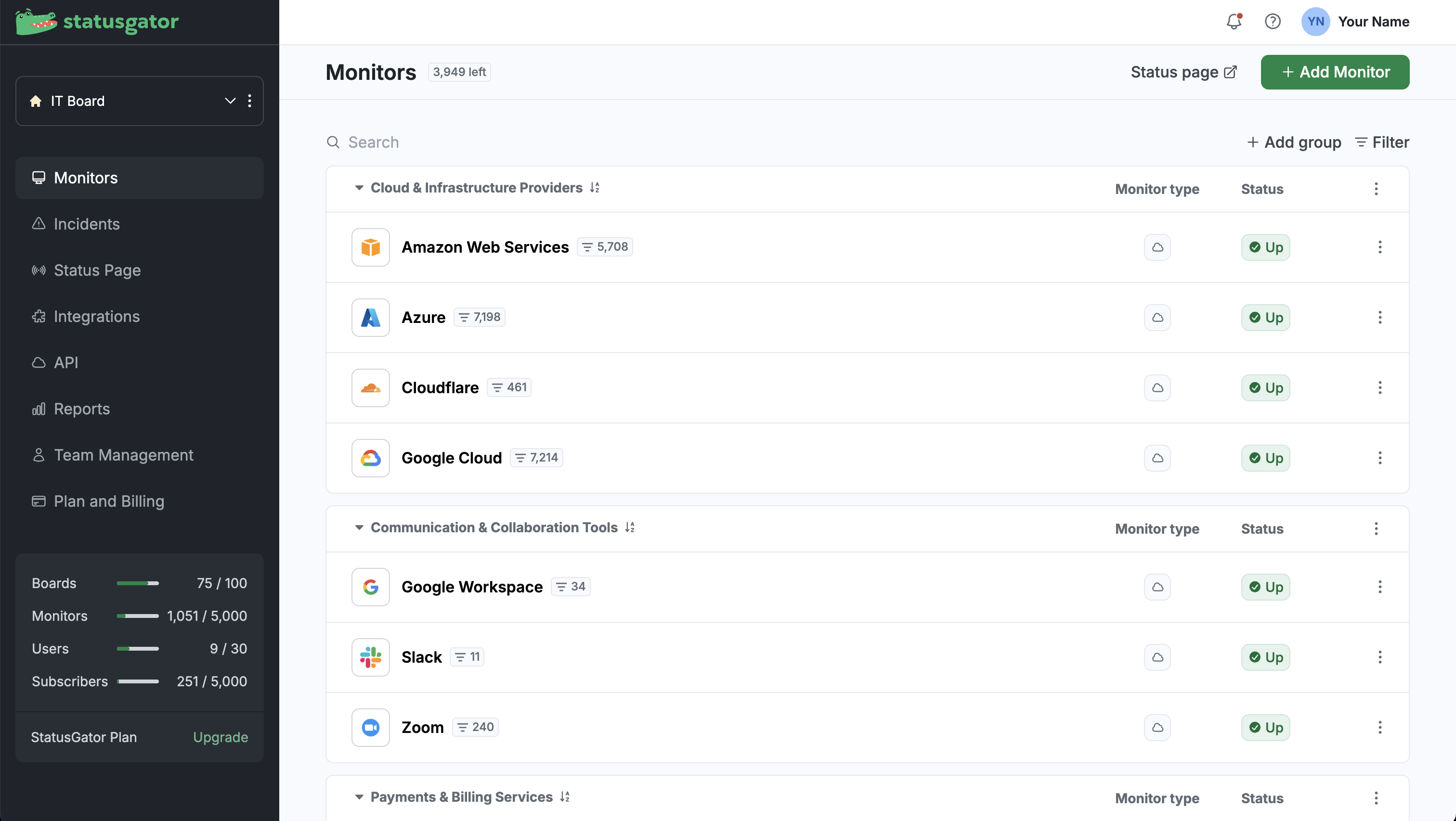
You can create as many groups as you need and organize them however makes sense for your environment. Monitors that are not assigned to a group appear under Ungrouped monitors.
Common examples include:
- Third-party services: Slack, Zoom, AWS, Stripe
- Internal applications: Website, API, User portal
- Mobile apps: iOS, Android
- Infrastructure: Databases, regions, load balancers
Monitors can be moved between groups at any time, so your structure can evolve as your systems change.
Creating a monitor group
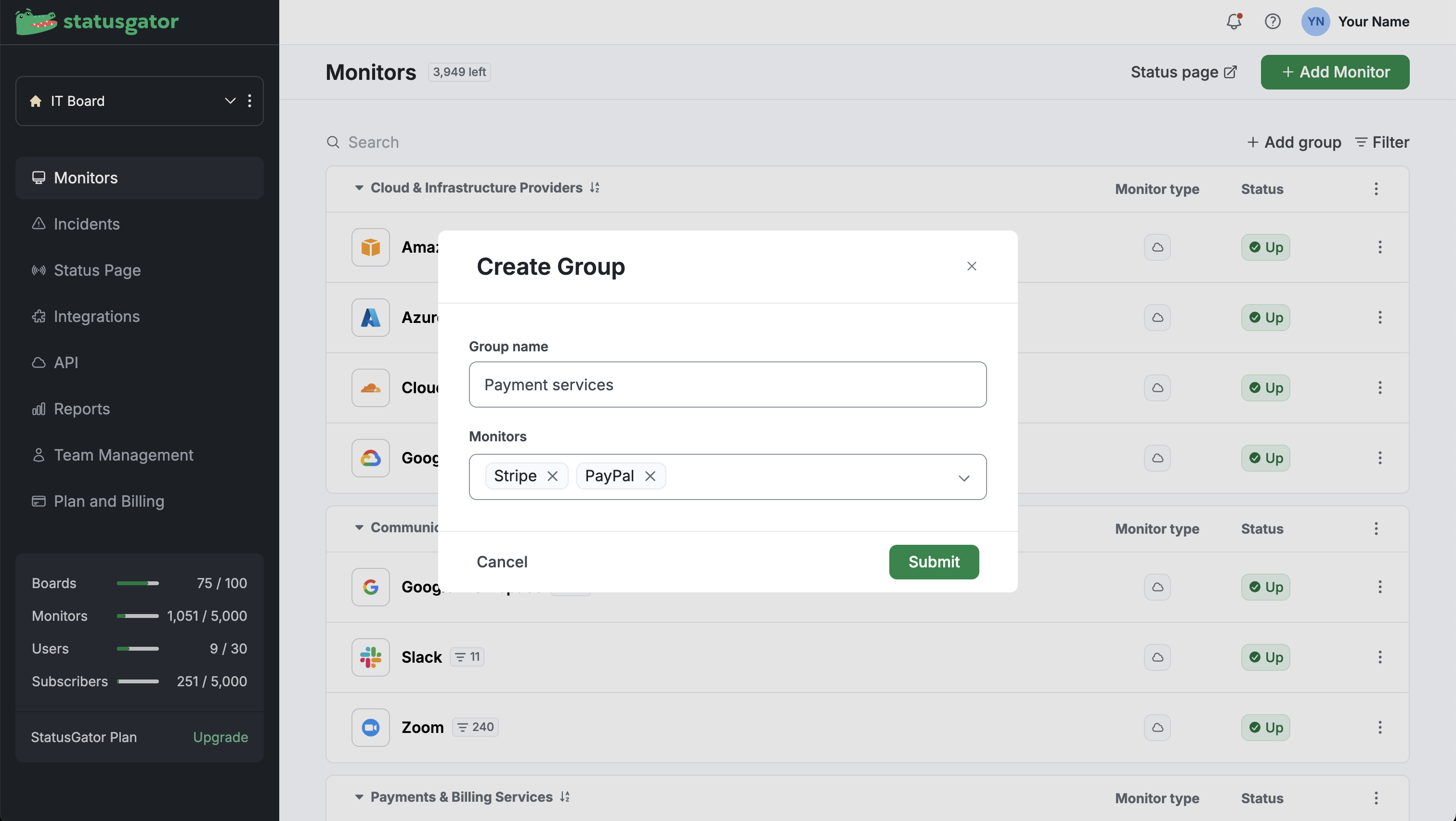
You can create monitor groups directly from the Monitors page.
- Open Monitors from the left-hand navigation
- Click Add group in the top-right area of the monitor list
- Enter a group name
- Select the monitors you want to include in the group
- Click Submit
Once created, groups appear as collapsible sections on the Monitors page.
- You can collapse or expand groups to reduce visual clutter
- Each group shows the number of monitors it contains
- Groups can be reordered, and this order controls how they appear on the status page
Editing or deleting a group
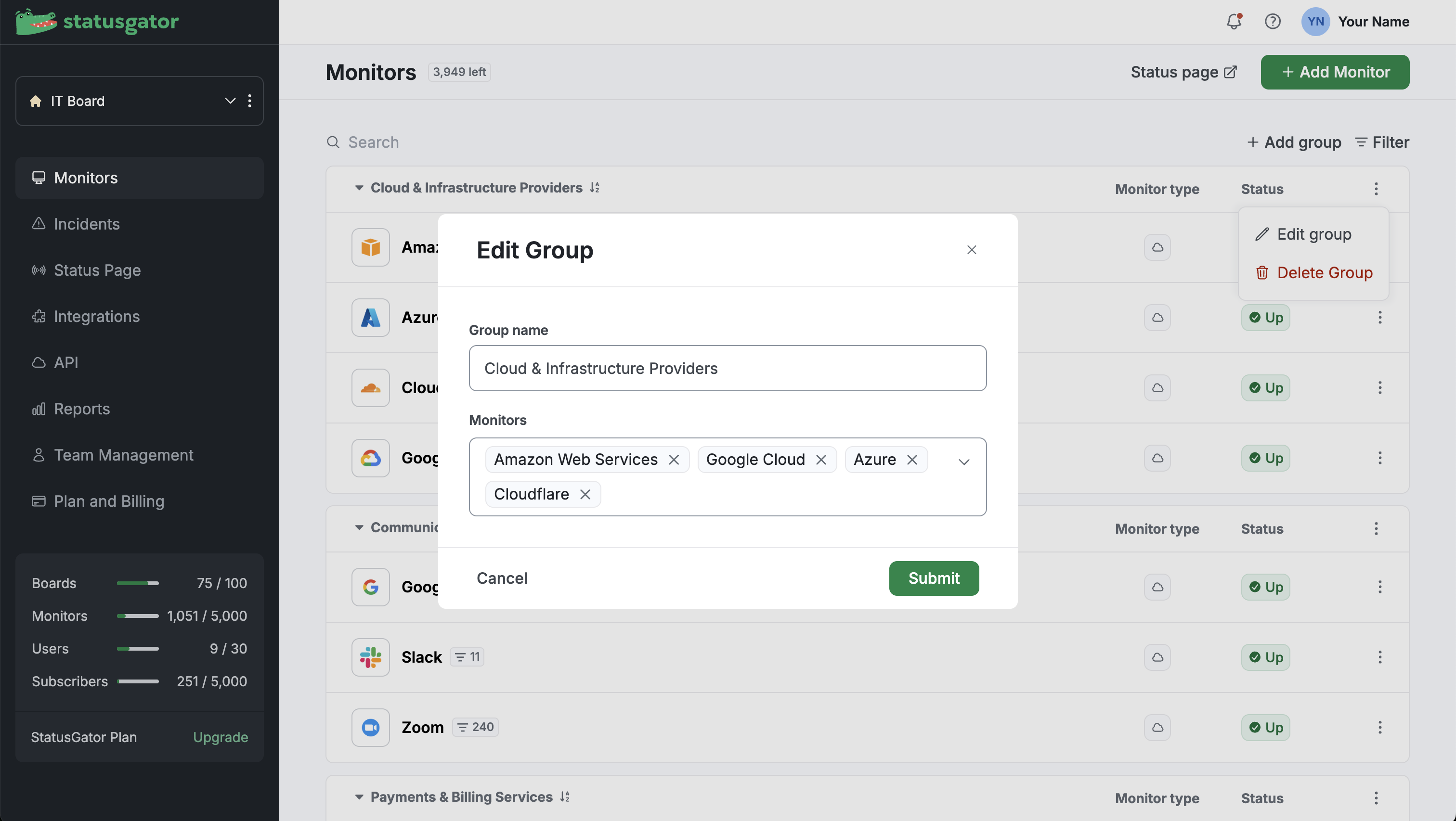
To manage an existing group:
- Locate the group in the Monitors list
- Click the three-dot menu next to the group name
- Choose Edit group or Delete group
When editing a group, you can:
- Rename the group
- Add monitors
- Remove monitors
If you delete a group, the monitors in that group are not deleted. They are automatically moved to Ungrouped monitors.
Assigning monitors to a group
You control which monitors belong to each group, and you can change group membership at any time.
You can assign or move monitors into groups in three ways:
Drag and drop between groups
You can quickly reorganize your monitors using drag and drop:
- Click and hold a monitor
- Drag it into a different group
- Release to move it instantly
The monitor will be removed from its previous group and added to the new one automatically. This makes it easy to reorganize your monitors as your infrastructure changes.
Edit the group
- Locate the group on the Monitors page
- Open the three-dot menu and select Edit group
- Add or remove monitors from the group
- Click Submit
This is the quickest way to manage multiple monitors at once.
Edit an individual monitor
- Open the monitor’s configuration page
- Find the Group dropdown
- Select the group you want the monitor to belong to
- Click Save
This is useful when updating a single monitor.
How groups appear on your status page and embeds
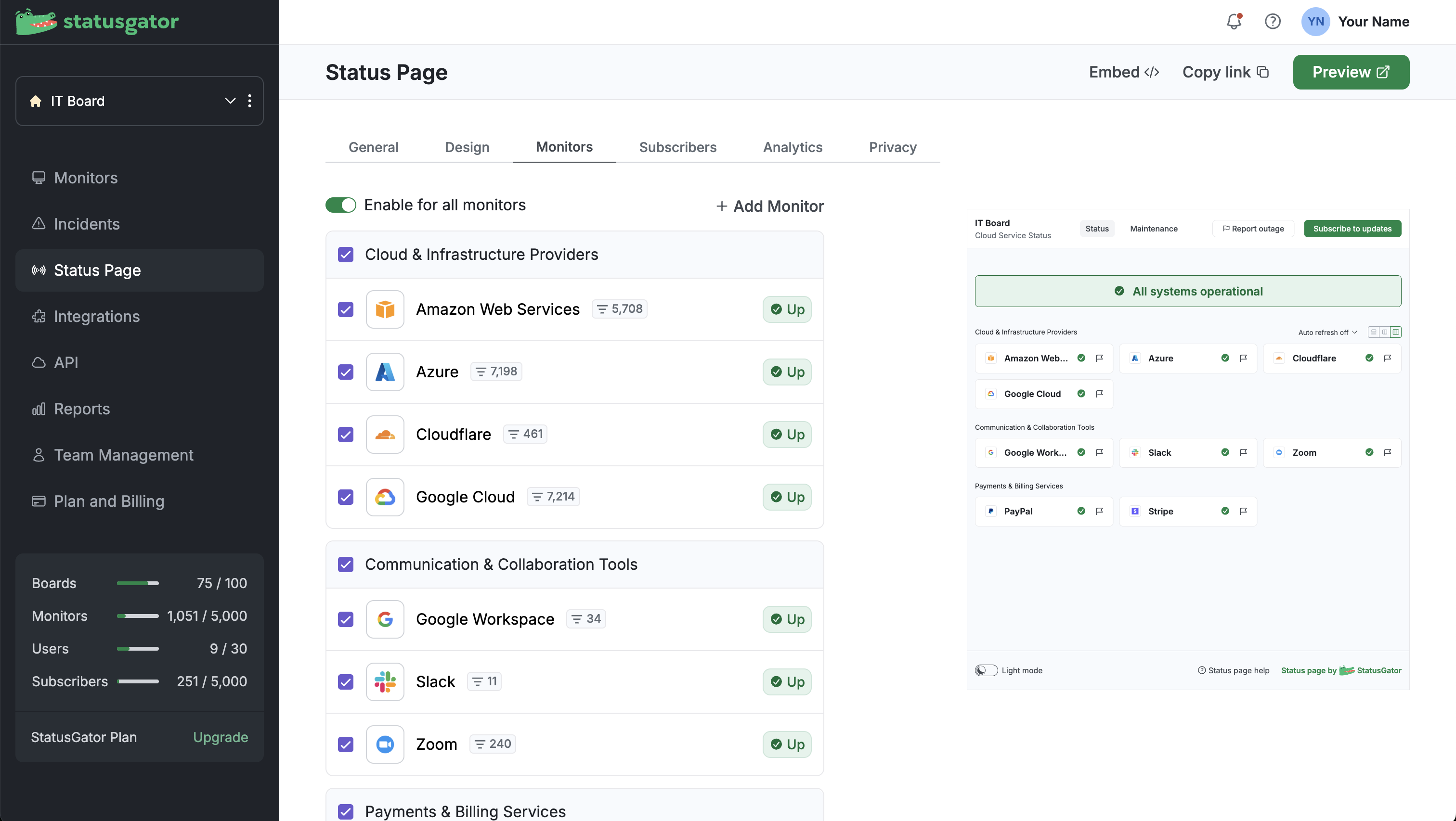
Monitor groups are reflected automatically on your Status Page and across all embeds, including iframe embeds and TV embeds, creating a structured, easy-to-scan layout wherever status information is displayed.
- Group names appear as section headers
- Monitors are listed under their assigned group
- Overall system status remains visible at the top
The order of groups on the status page and embeds matches the order you set on the Monitors page, giving you full control over how information is presented.
If you already use StatusGator, you can start organizing your monitors today.
If you’re new to StatusGator, you can sign up for free and start monitoring your services in minutes.