Google Cloud status (Beta)
The Google Cloud status integration allows StatusGator to monitor service health for your Google Cloud projects using a service account.
Note: This integration is currently in beta.
Features
- Automatically monitor Google Cloud service health
- View Google Cloud status alongside your other monitors
- Projects appear as components in StatusGator
- Uses a secure, read-only Google Cloud service account
- Supports monitoring multiple projects
Set up Google Cloud integration
To enable this integration, you will create or reuse a Google Cloud service account, grant it monitoring permissions, enable required APIs, generate a service account key, and connect that key to StatusGator.
In Google Cloud
1. Go to your Google Cloud project
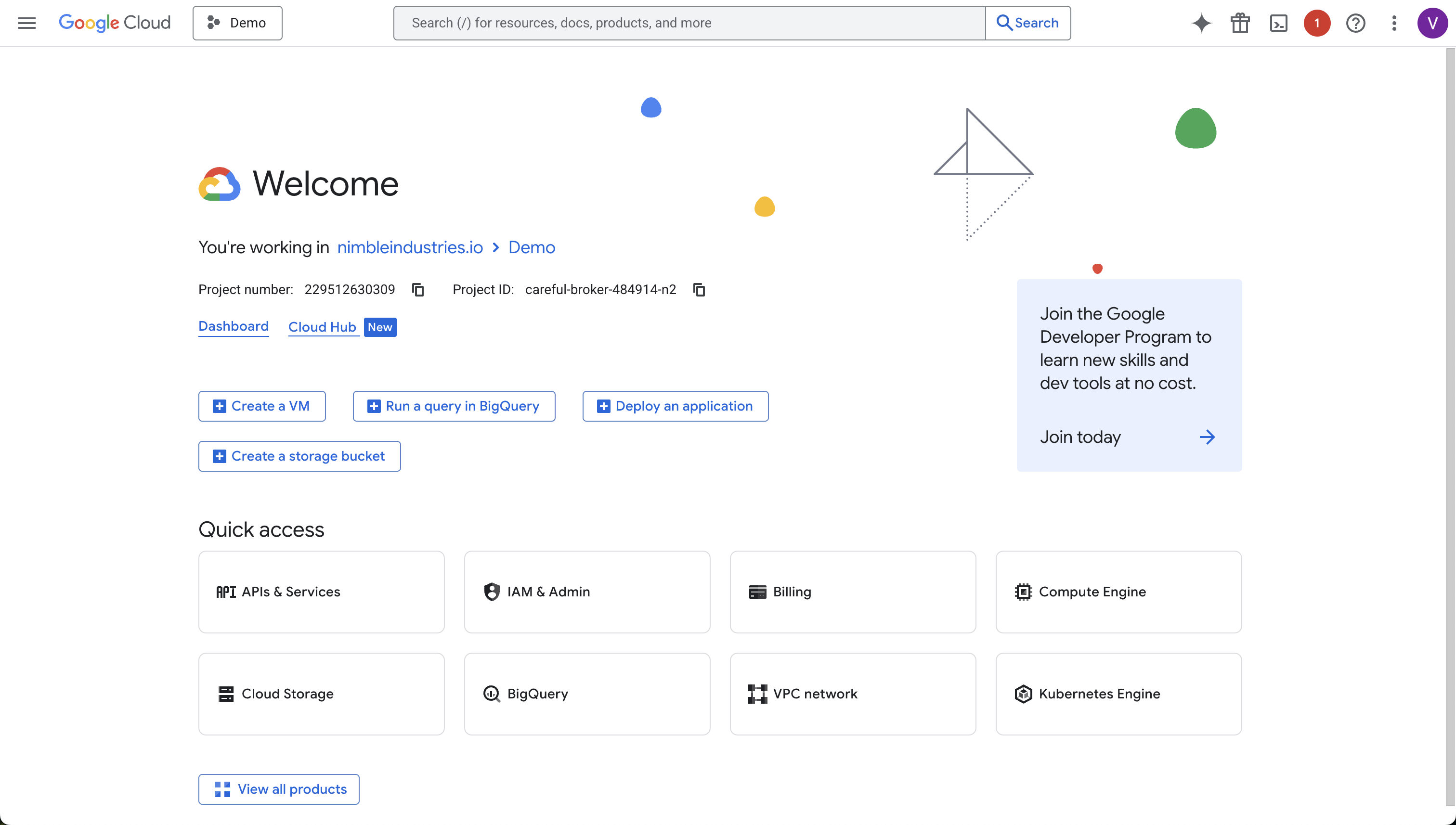
Sign in to the Google Cloud Console and select the project you want to work with. You can use an existing project or create a new one.
Where to find your project ID
You will need your project ID when running the commands below.
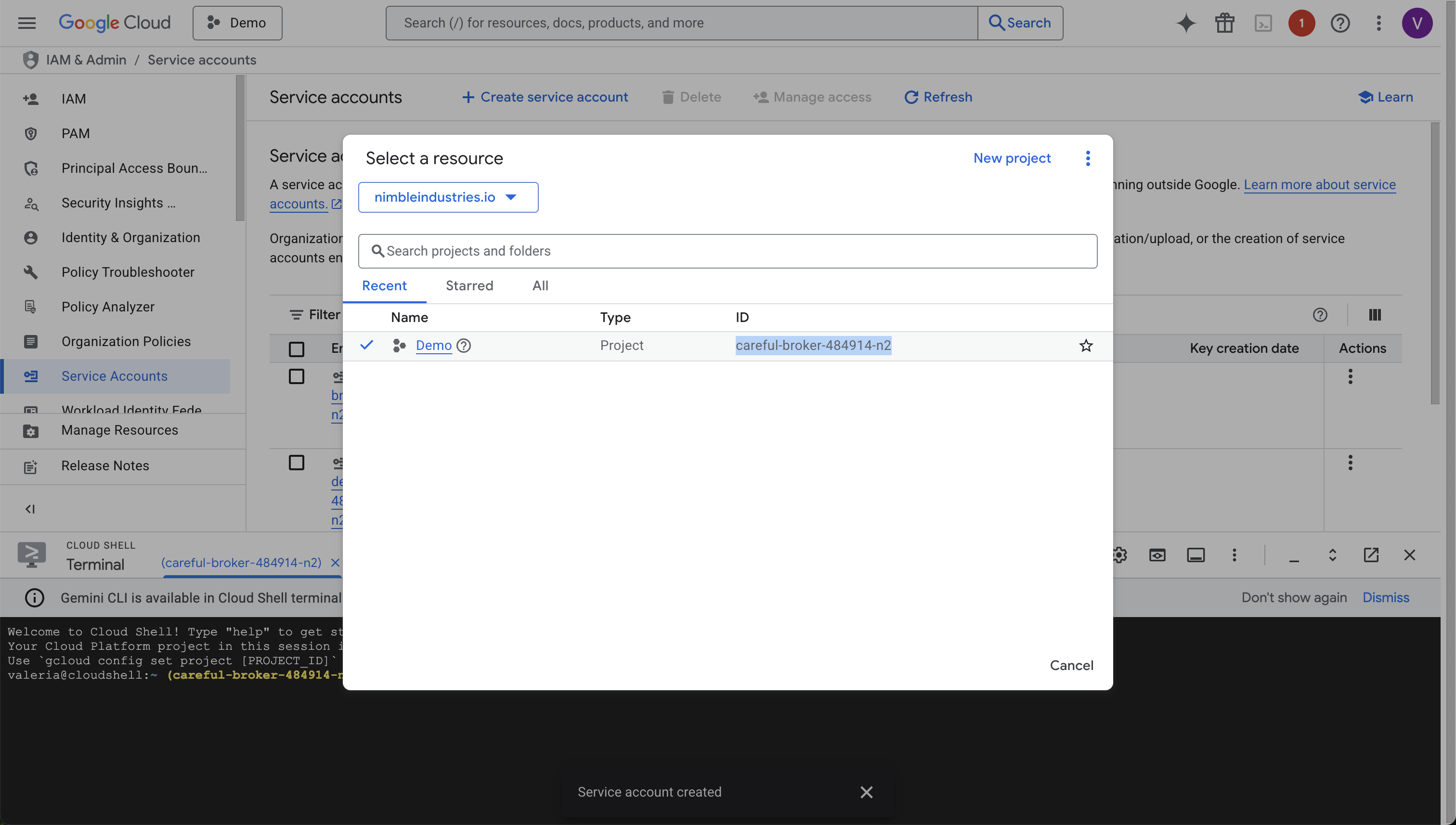
To find it:
- In the Google Cloud Console, click the project selector at the top of the page
- In the project list, look at the ID column and copy the value shown there
Use this value wherever PROJECT_ID, CENTRAL_PROJECT_ID, or MAIN_PROJECT_ID is referenced.
2. Open service accounts
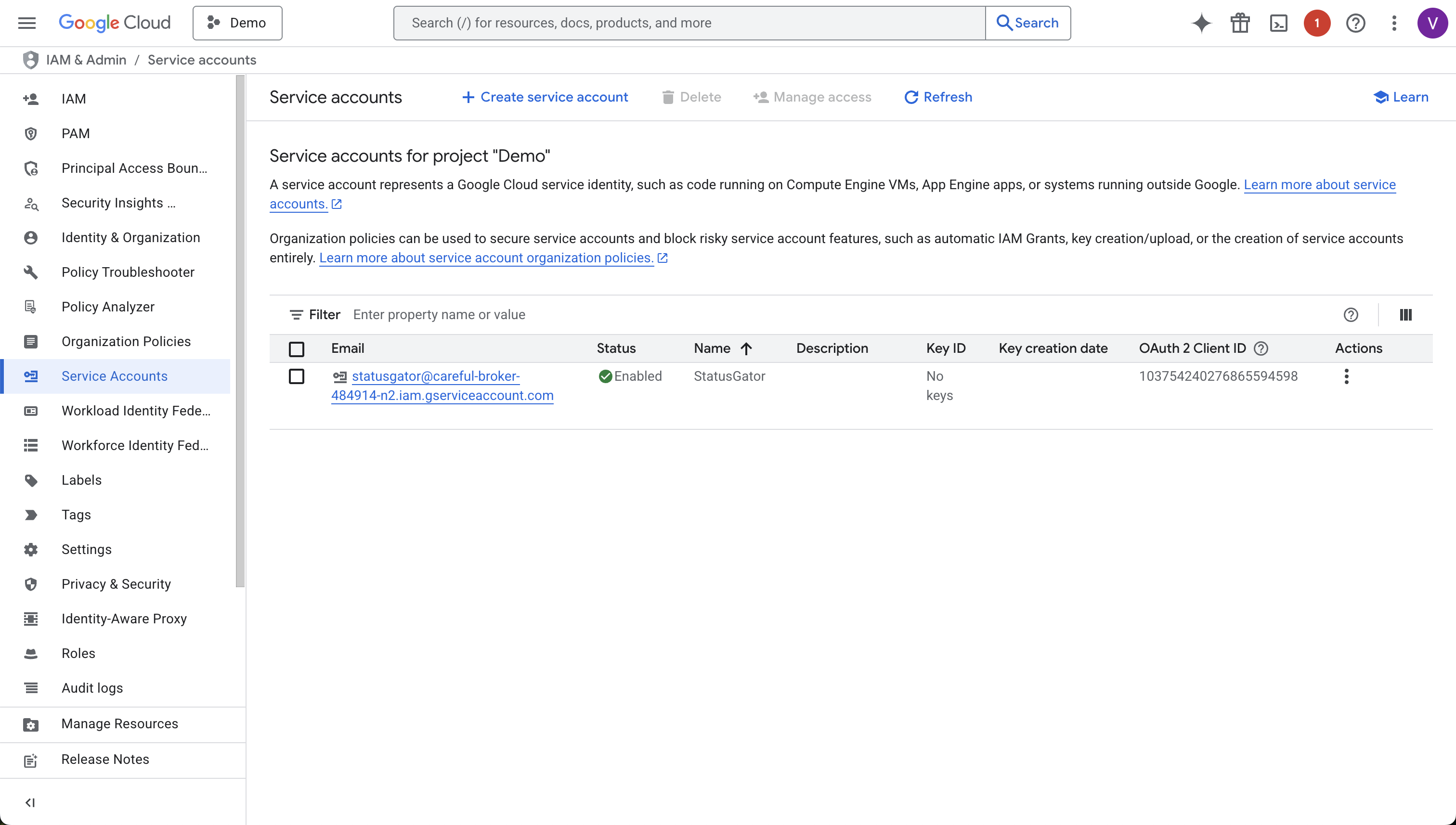
From the left sidebar, go to IAM & Admin and then Service Accounts.
Create a new service account or select an existing one.
If you do not already have a service account:
- Click Create service account
- Enter a name for the service account, for example StatusGator
- The Service account ID will be generated automatically. You can keep the default value
- Optionally add a description
- Click Create and continue
- The Permissions step is optional. You can skip assigning roles here and click Continue
- The Principals with access step is optional. You can leave this empty and click Done
After completing these steps, the service account will appear in the service accounts list and can be used in the setup steps below. Make sure you click on service account email to get into details page before proceeding to next steps.
If you only need access to currently selected project, you don’t need to use console. Instead go to just created service account by clicking email. Click Keys → Add key → Create new key → JSON
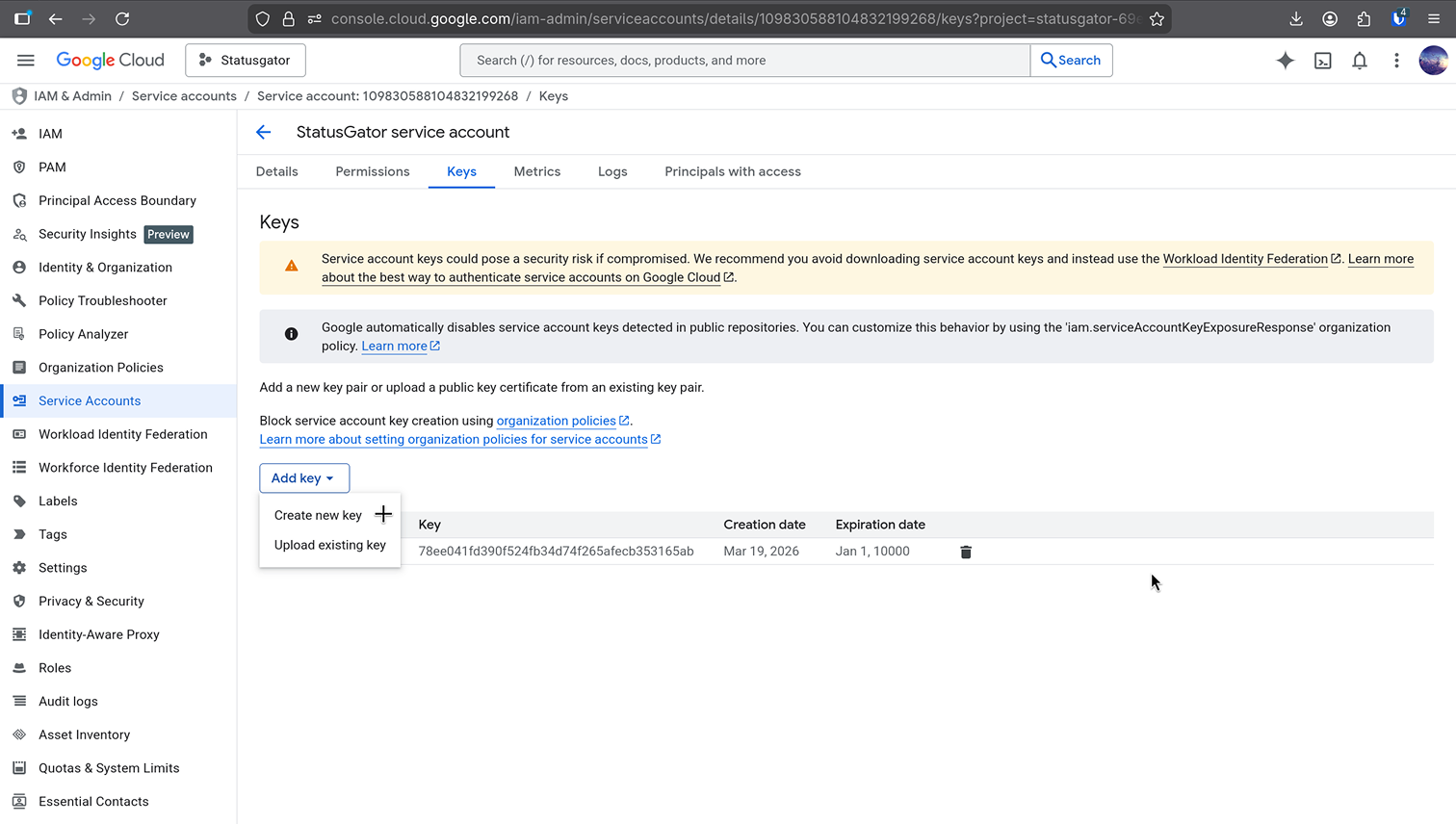
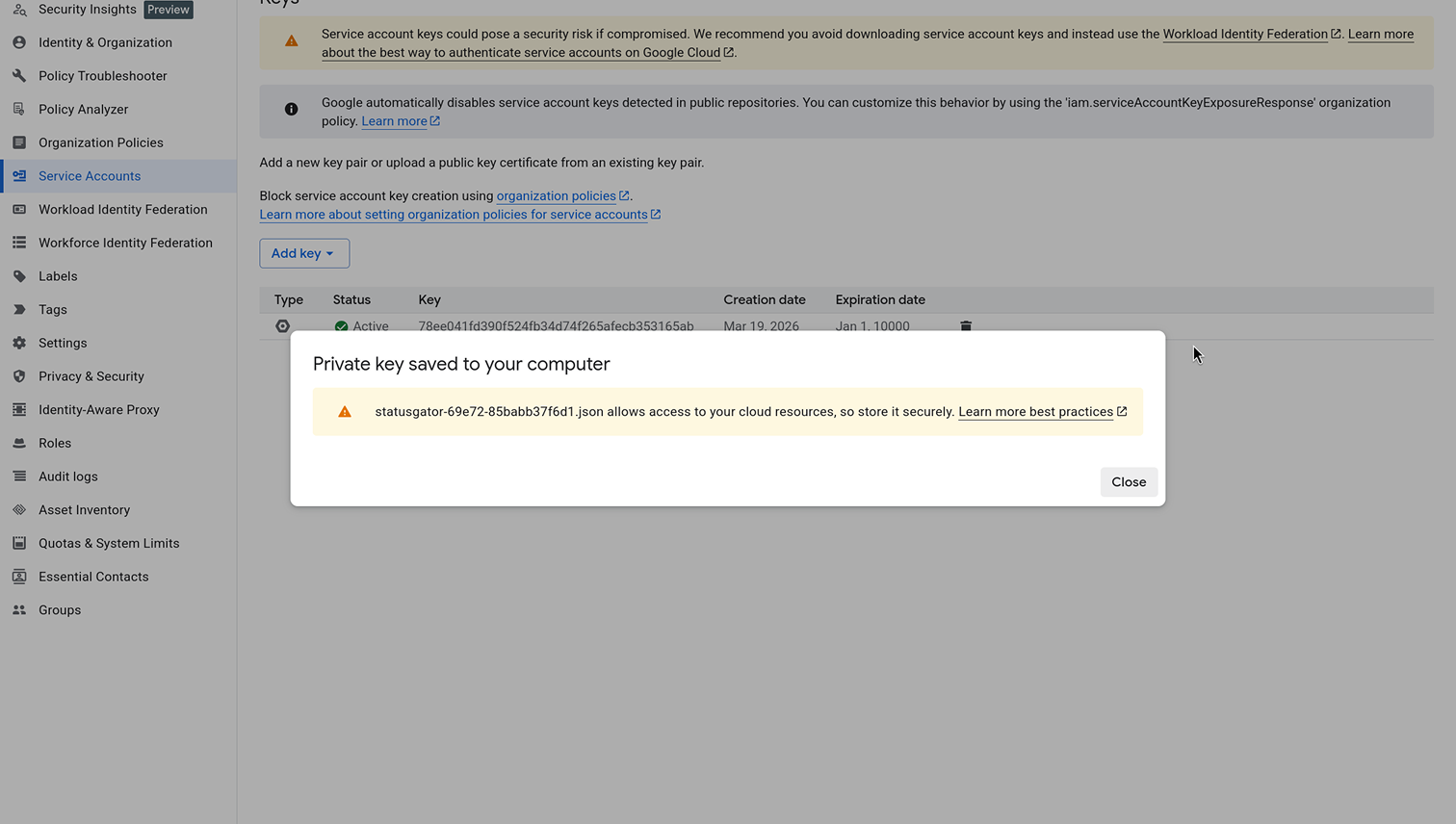
Once you created - you will be prompted to download it. Download, open with any text editor and copy contents. Open the Google Cloud status integration in StatusGator. Paste the full JSON service account key and save.
3. Open Cloud Shell and run the commands
Open Cloud Shell in the Google Cloud Console and run the following commands in order.
For each command below:
- Paste the command into Cloud Shell
- Use the left and right arrow keys on your keyboard to move through the text and replace the project IDs
- Press Enter to run the command
3.1 Create the service account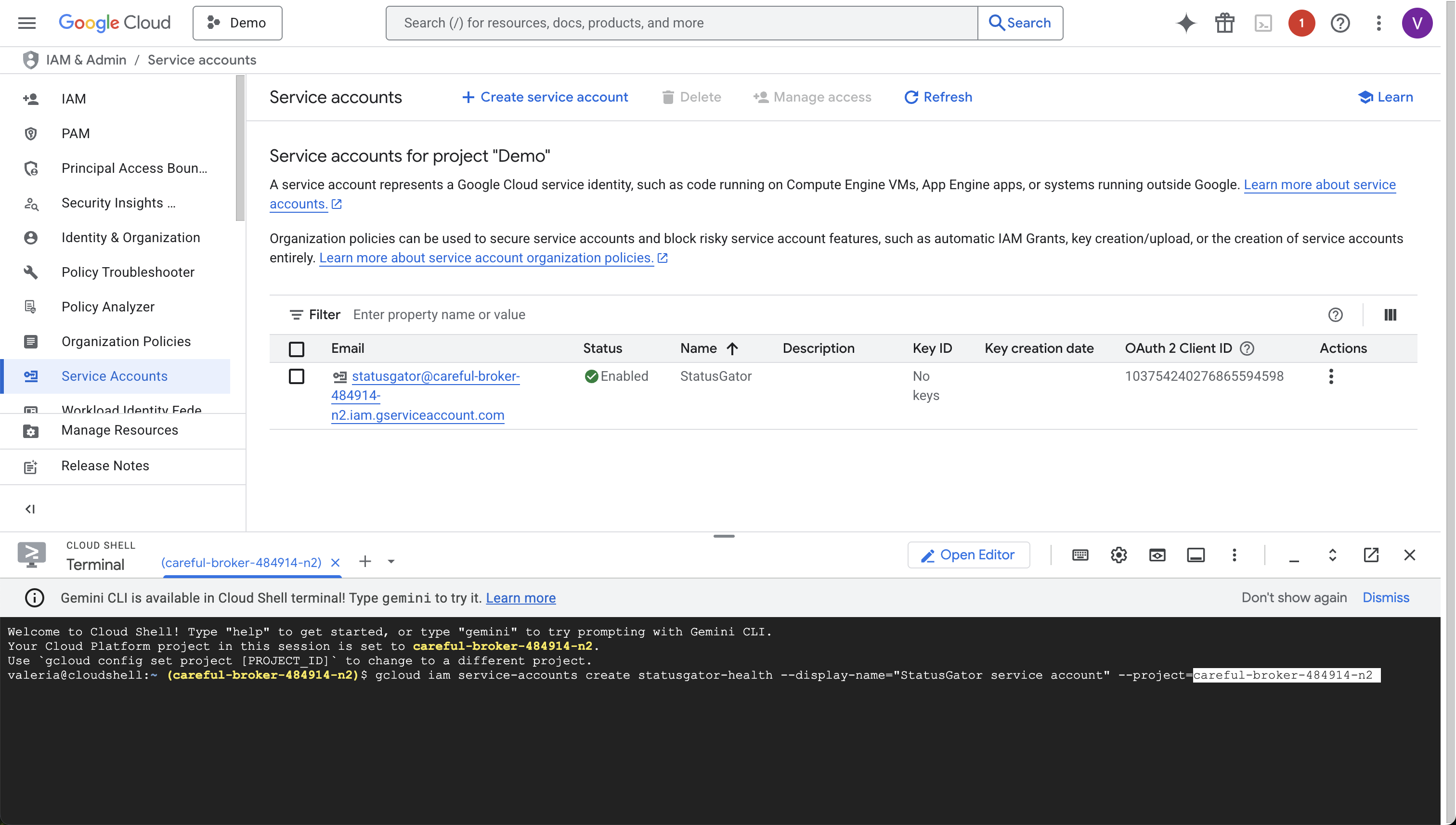
gcloud iam service-accounts create statusgator-health \
  --display-name="StatusGator service account" \
  --project=CENTRAL_PROJECT_ID
Replace CENTRAL_PROJECT_ID with your project ID.
3.2 Enable the Cloud Resource Manager API
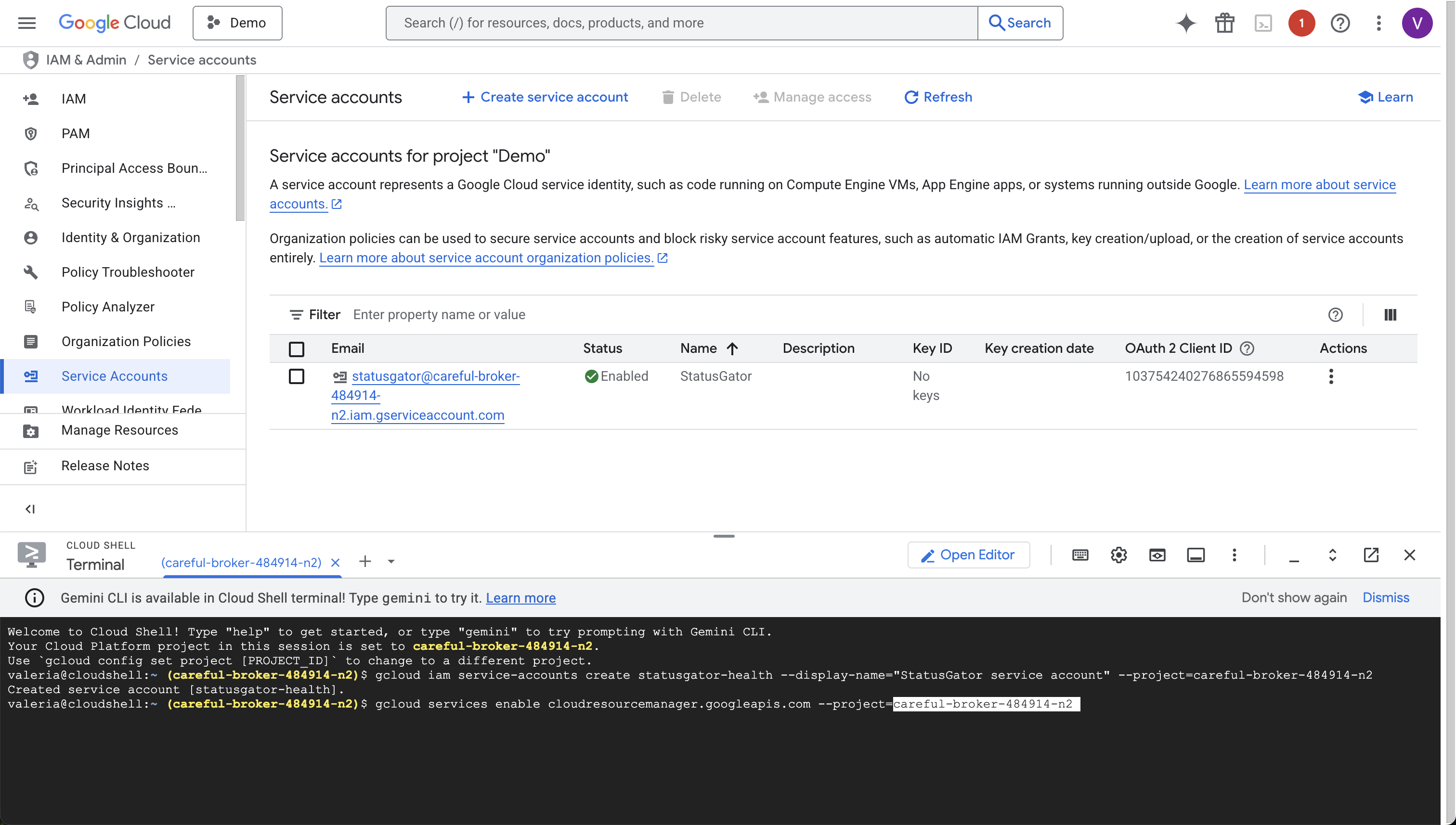
Replace MAIN_PROJECT_ID with your project ID.
gcloud servicesenable cloudresourcemanager.googleapis.com \
  --project=MAIN_PROJECT_ID
3.3 Grant monitoring access to the project
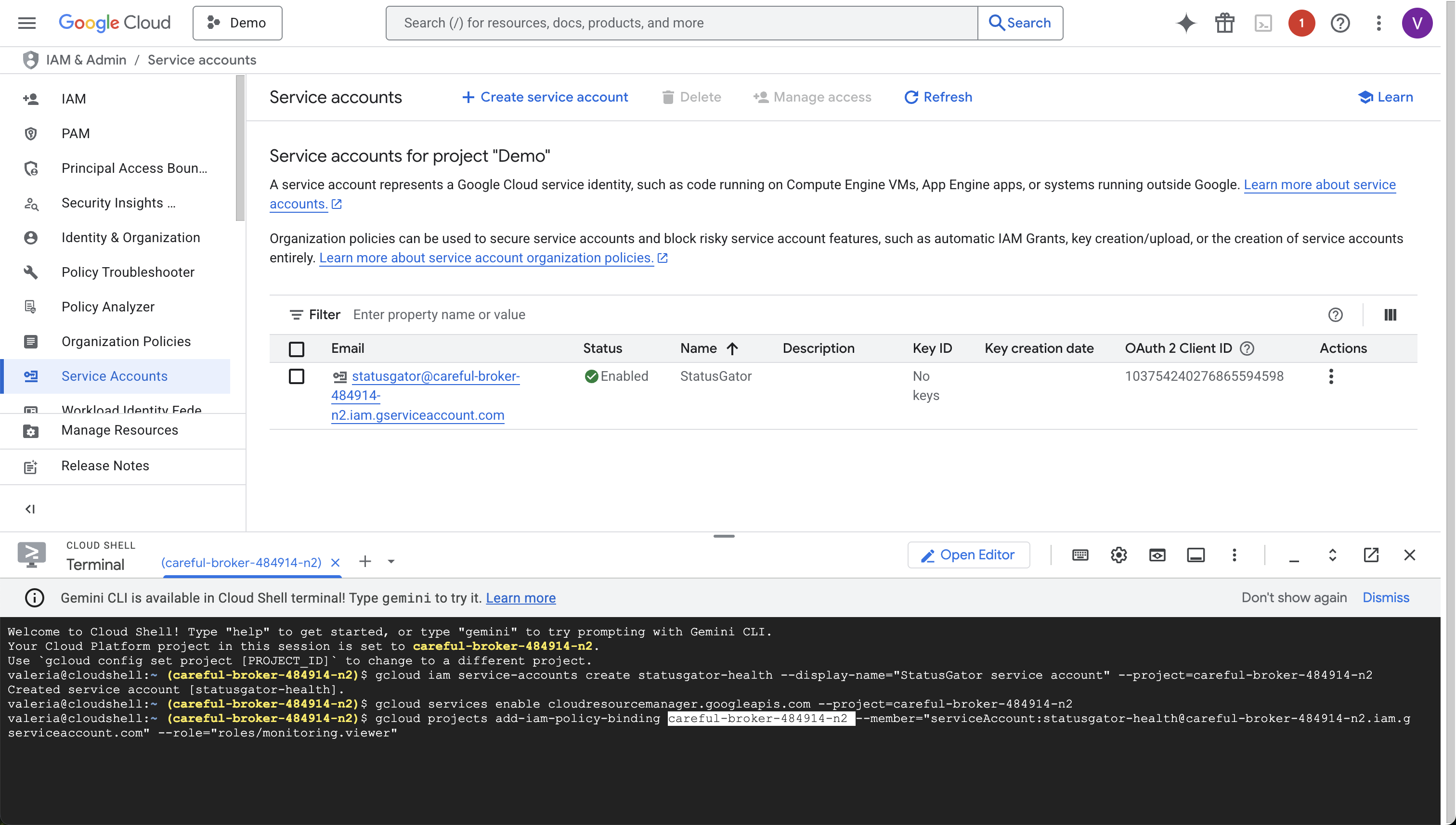
Grant the service account read-only monitoring access.
Replace PROJECT_ID with your project ID. Repeat for each project you want to monitor.
gcloud projects add-iam-policy-binding PROJECT_ID \
  --member="serviceAccount:statusgator-health@PROJECT_ID.iam.gserviceaccount.com" \
  --role="roles/monitoring.viewer"
3.4 Enable service health API
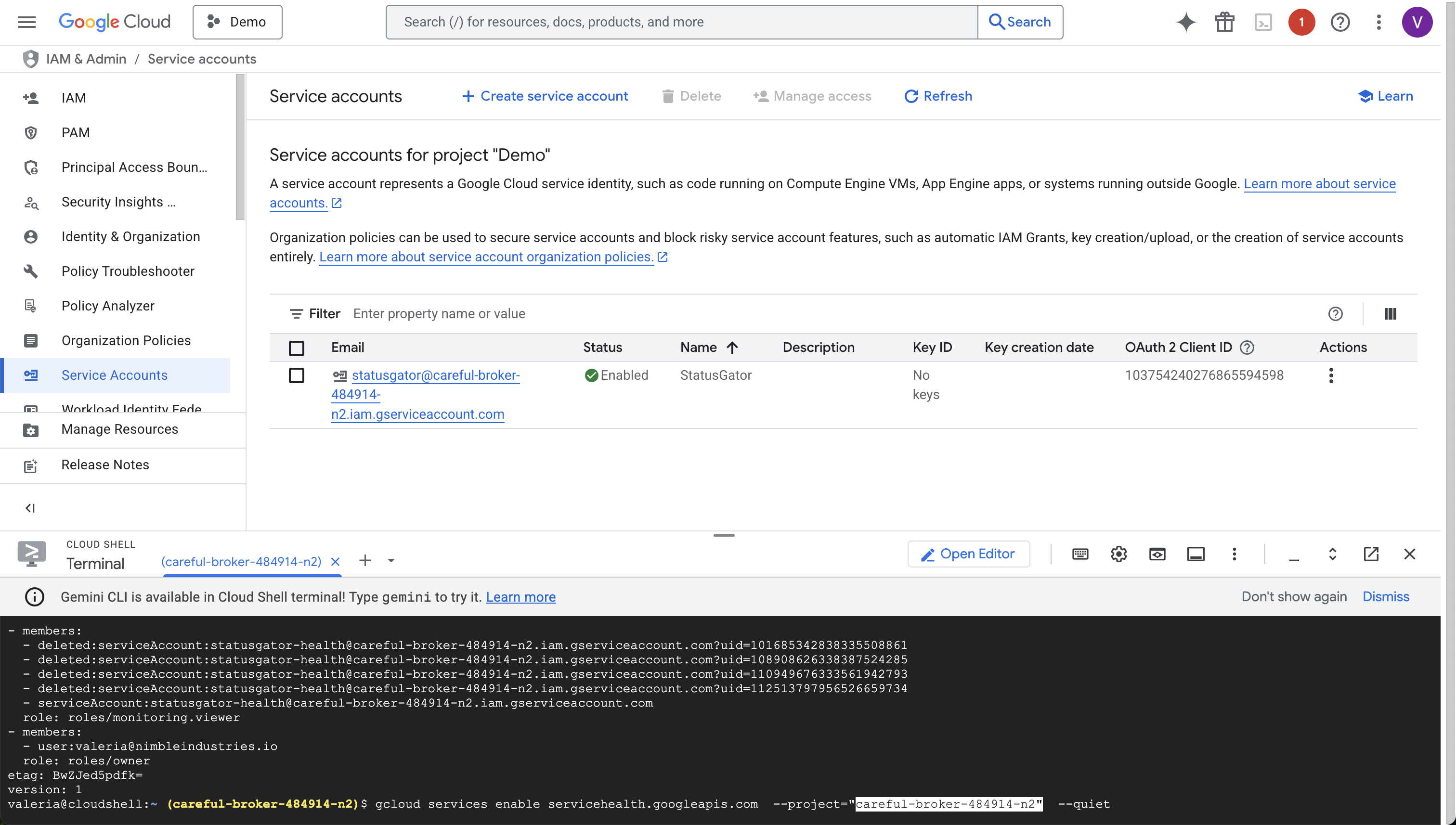
This step is required. The Google Cloud status integration relies on the Service Health API to retrieve service health information.
Replace PROJECT_ID with your project ID.
gcloud services enable servicehealth.googleapis.com \
  --project="PROJECT_ID" \
  --quiet
3.5 Create a service account key
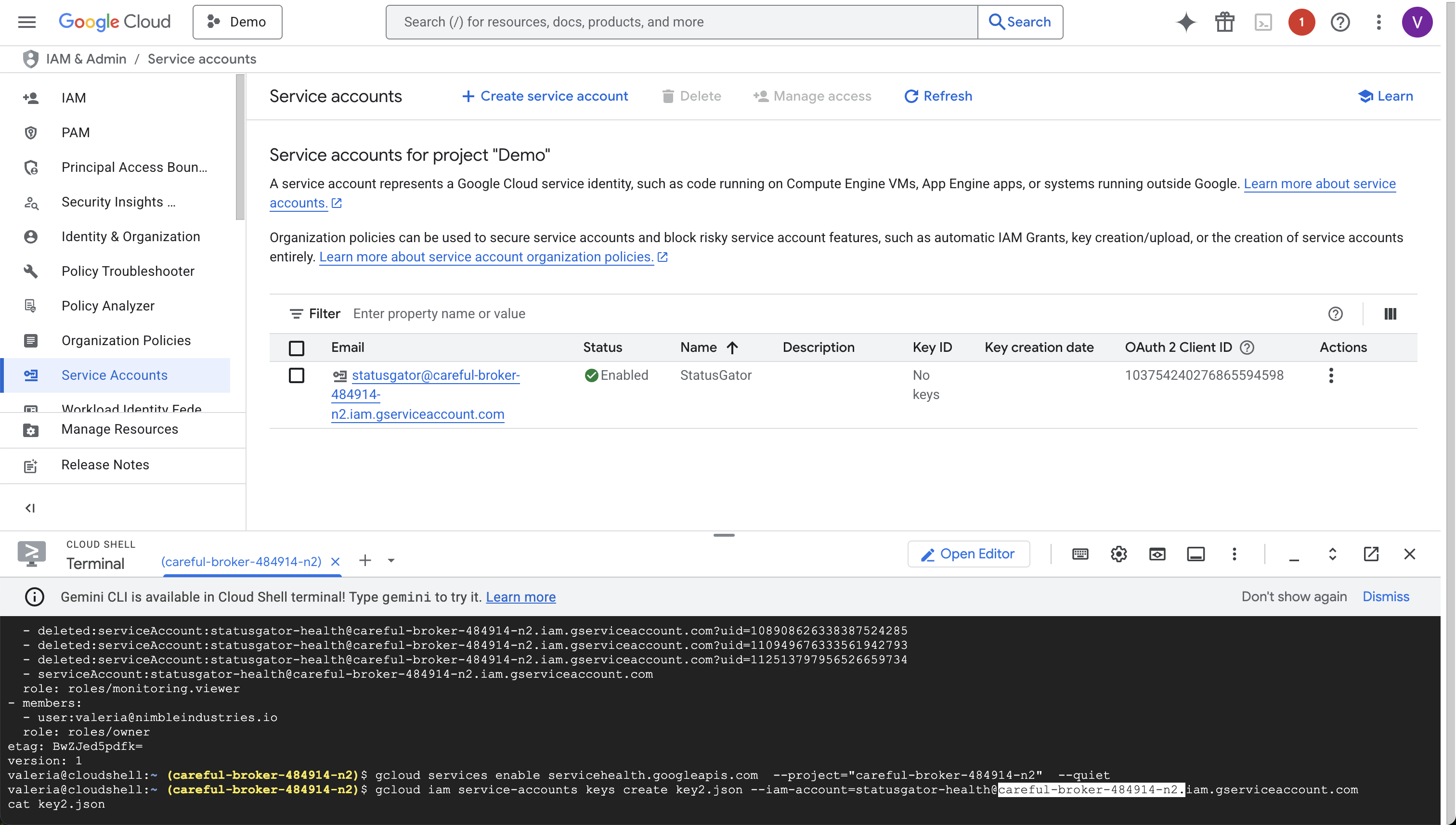
Create a JSON key for the service account.
Replace PROJECT_ID with your project ID.
gcloud iam service-accounts keys create key.json \
  --iam-account=statusgator-health@PROJECT_ID.iam.gserviceaccount.com
cat key.json
4. Copy the service account key
Copy the entire JSON key output. It will look similar to the example below:
{
"type":"service_account",
"project_id":"careful-broker-484914-n2",
"private_key_id":"...",
"private_key":"-----BEGIN PRIVATE KEY-----\\n...\\n-----END PRIVATE KEY-----\\n",
"client_email":"statusgator-health@careful-broker-484914-n2.iam.gserviceaccount.com",
"client_id":"...",
"auth_uri":"<https://accounts.google.com/o/oauth2/auth>",
"token_uri":"<https://oauth2.googleapis.com/token>",
"auth_provider_x509_cert_url":"<https://www.googleapis.com/oauth2/v1/certs>",
"client_x509_cert_url":"<https://www.googleapis.com/robot/v1/metadata/x509/statusgator-health%40careful-broker-484914-n2.iam.gserviceaccount.com>",
"universe_domain":"googleapis.com"
}
Keep this key secure. It provides read-only access to your Google Cloud monitoring data.
In StatusGator
Open the Google Cloud status integration in StatusGator. Paste the full JSON service account key and save.
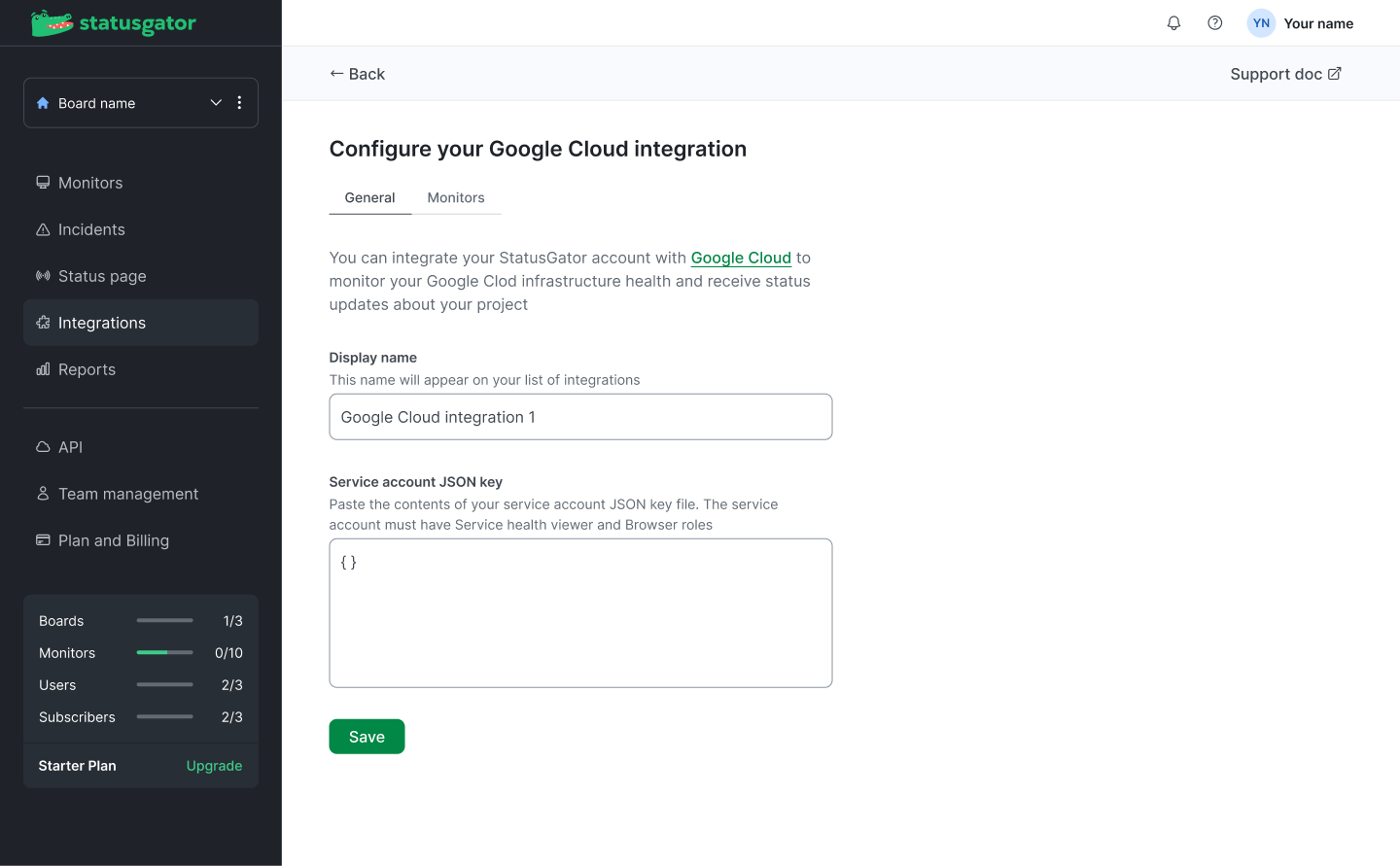
What you will see in StatusGator
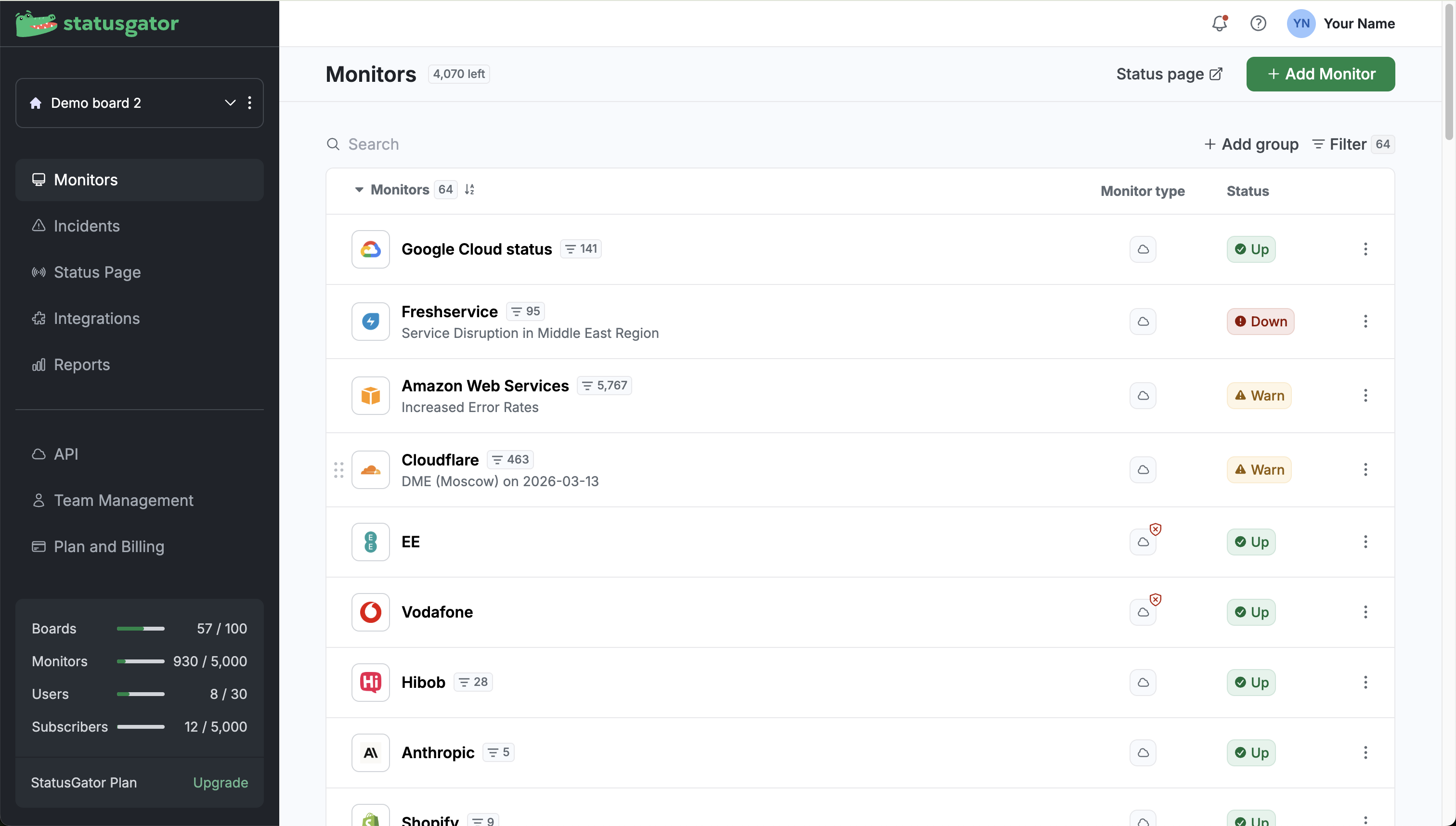
After connecting the integration, a Google Cloud status monitor will appear in your Monitors list. Each project you connected will be displayed as a component.