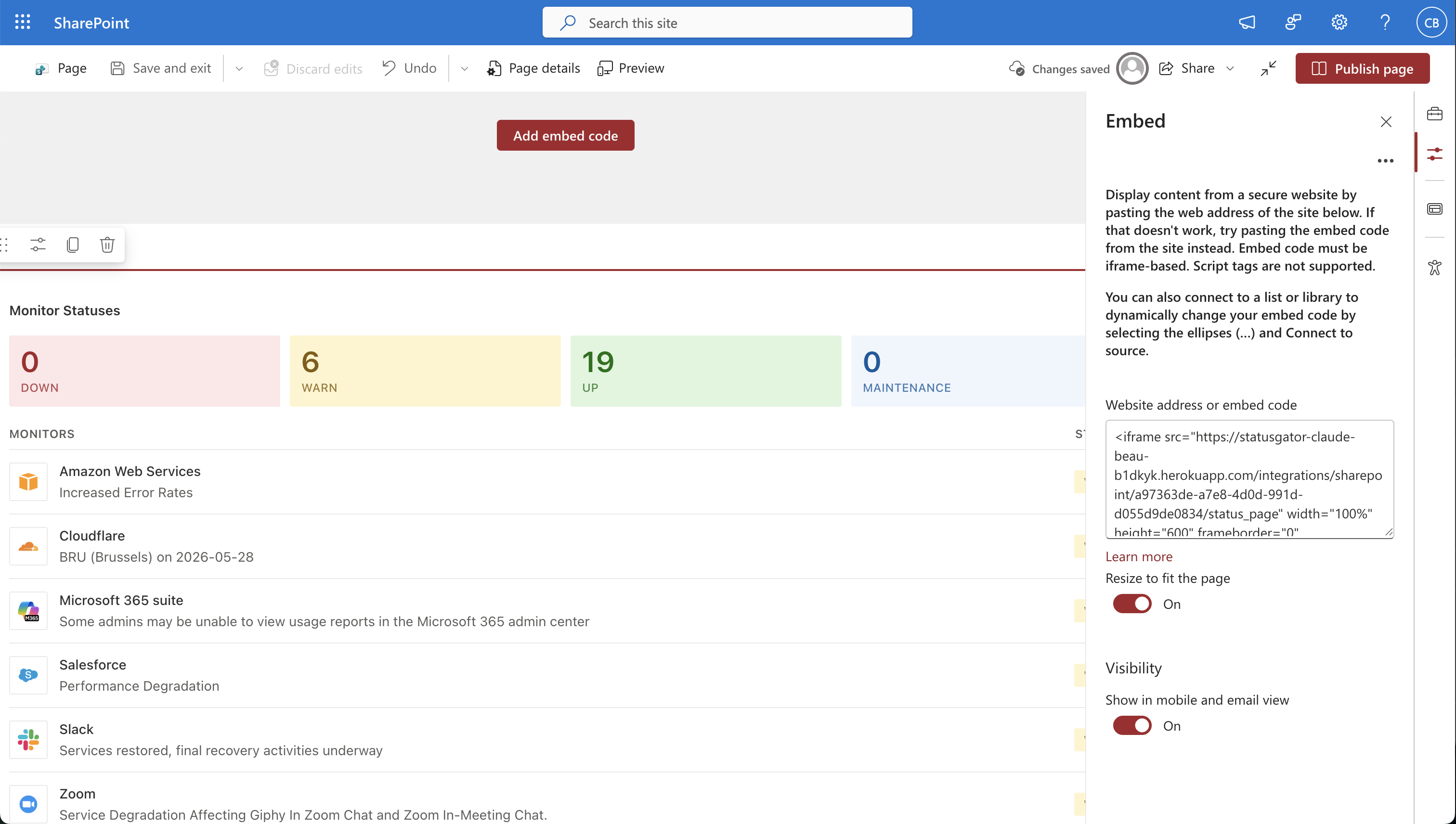
Connect StatusGator to SharePoint
Embed your StatusGator status page directly into SharePoint so users can view service health, outages, and maintenance events without leaving your SharePoint site.
Features
Display your StatusGator status page directly within SharePoint
Monitor outages, degradations, and maintenance events in one place
Automatically updated service status information
Supports SharePoint's Embed web part
Set up StatusGator
Get your embed code
- Log in to StatusGator.
- Navigate to Integrations > Knowledge Base > SharePoint.
- Copy the generated embed code.
Set up the SharePoint
Configure SharePoint to allow StatusGator embeds
Before adding the status page, SharePoint must be configured to allow external iFrames from StatusGator.
Open your SharePoint site.
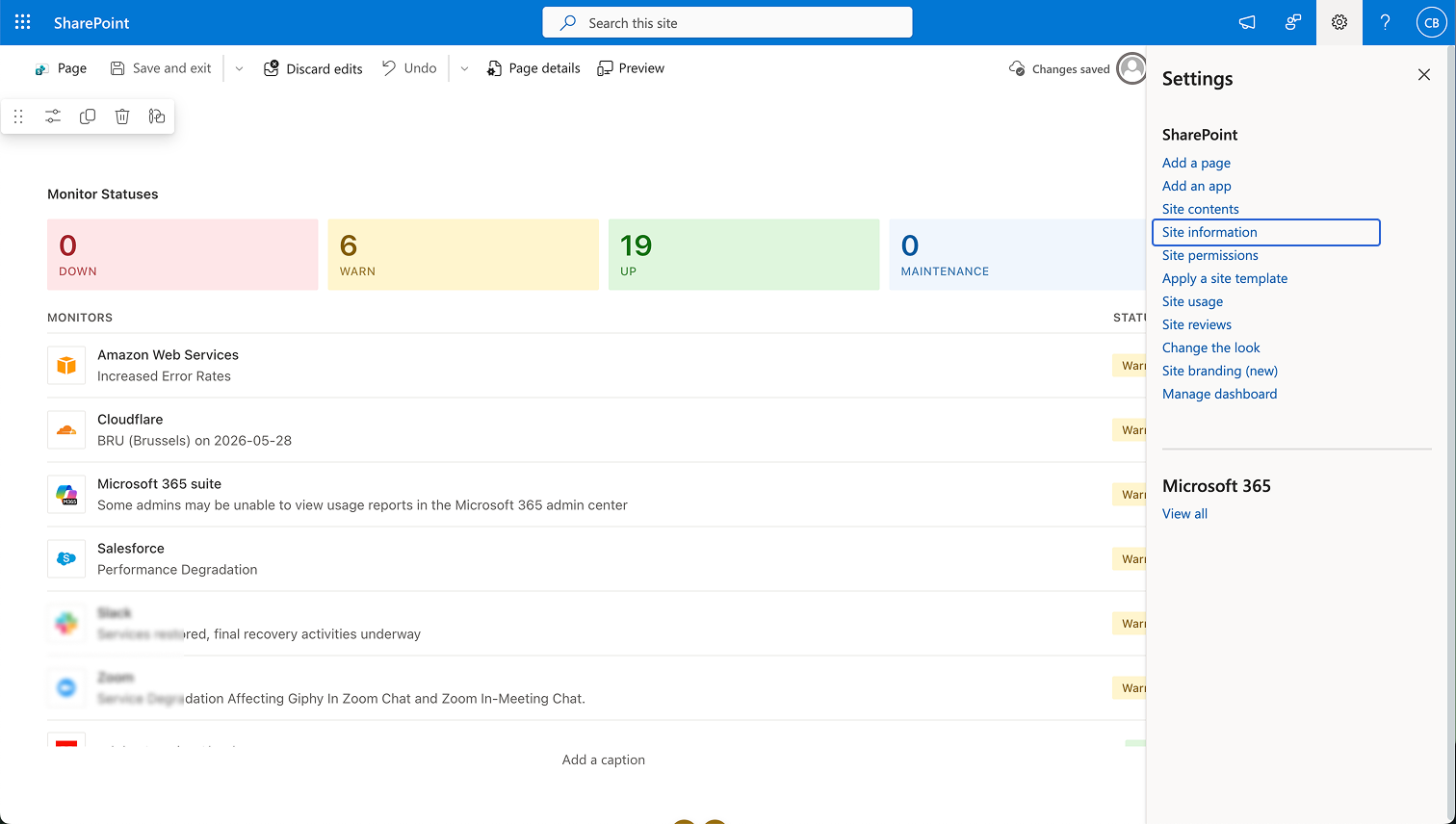
Click the Settings (gear) icon in the upper-right corner.
Select Site information.
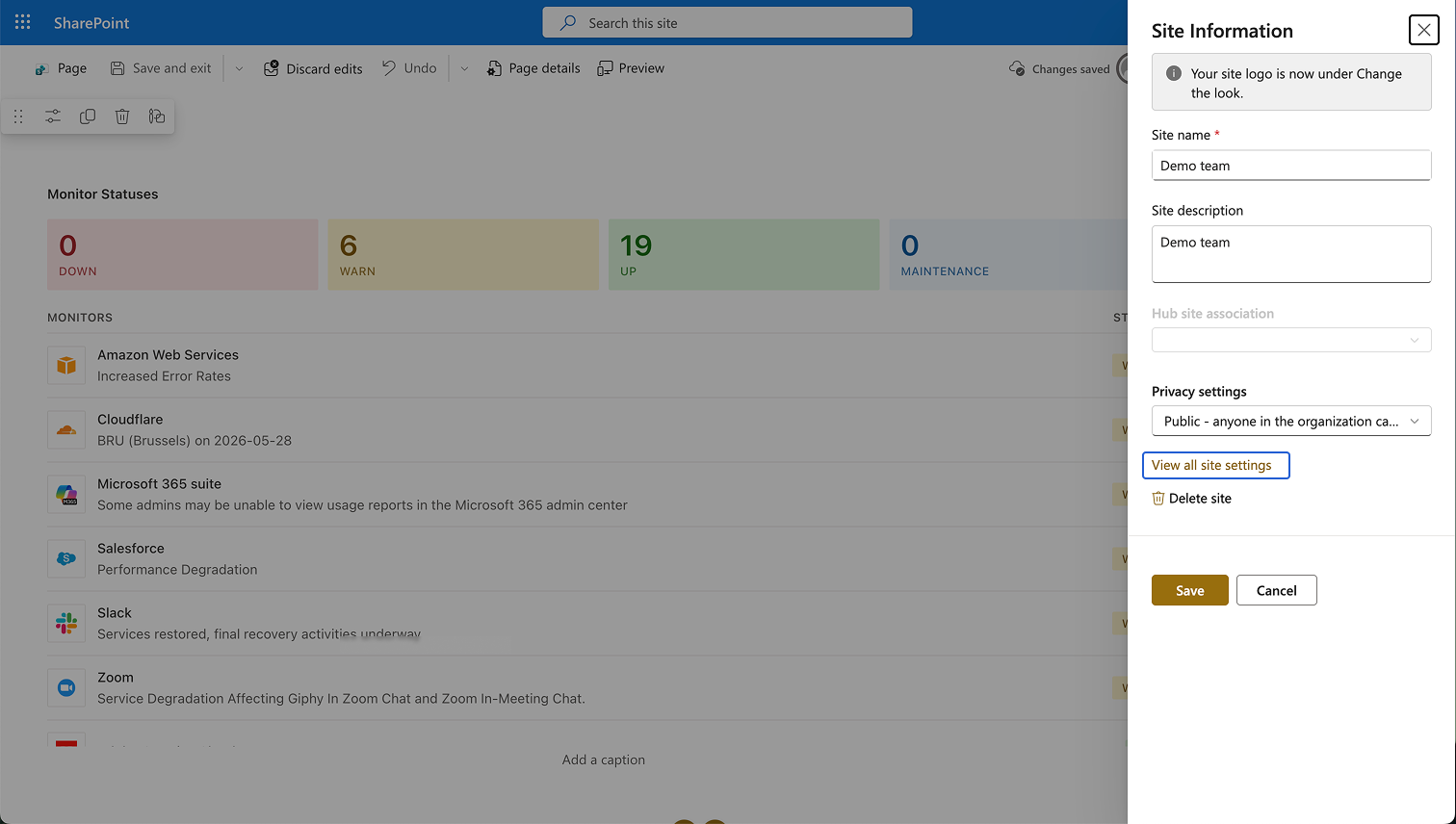
Click View all site settings.
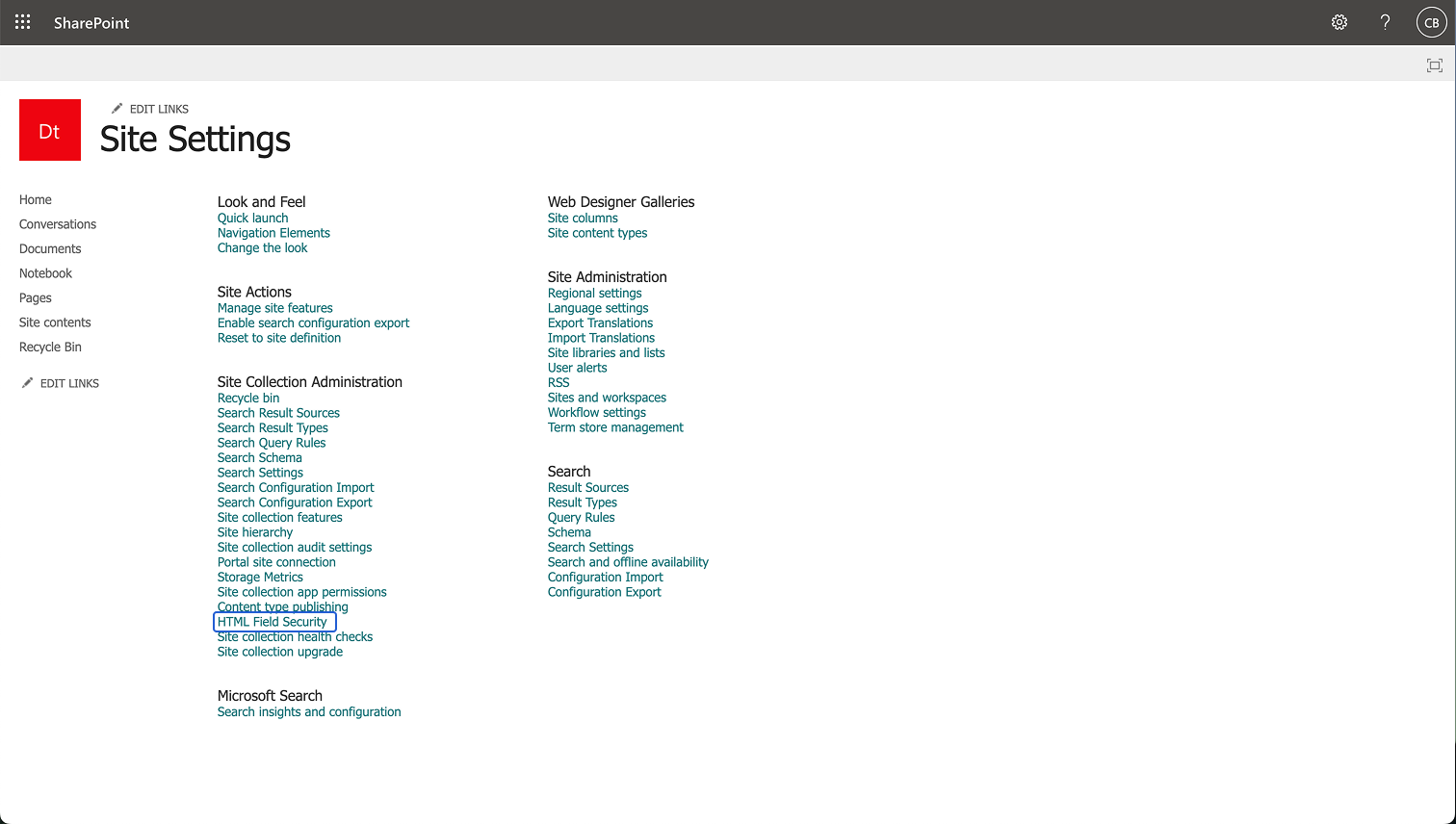
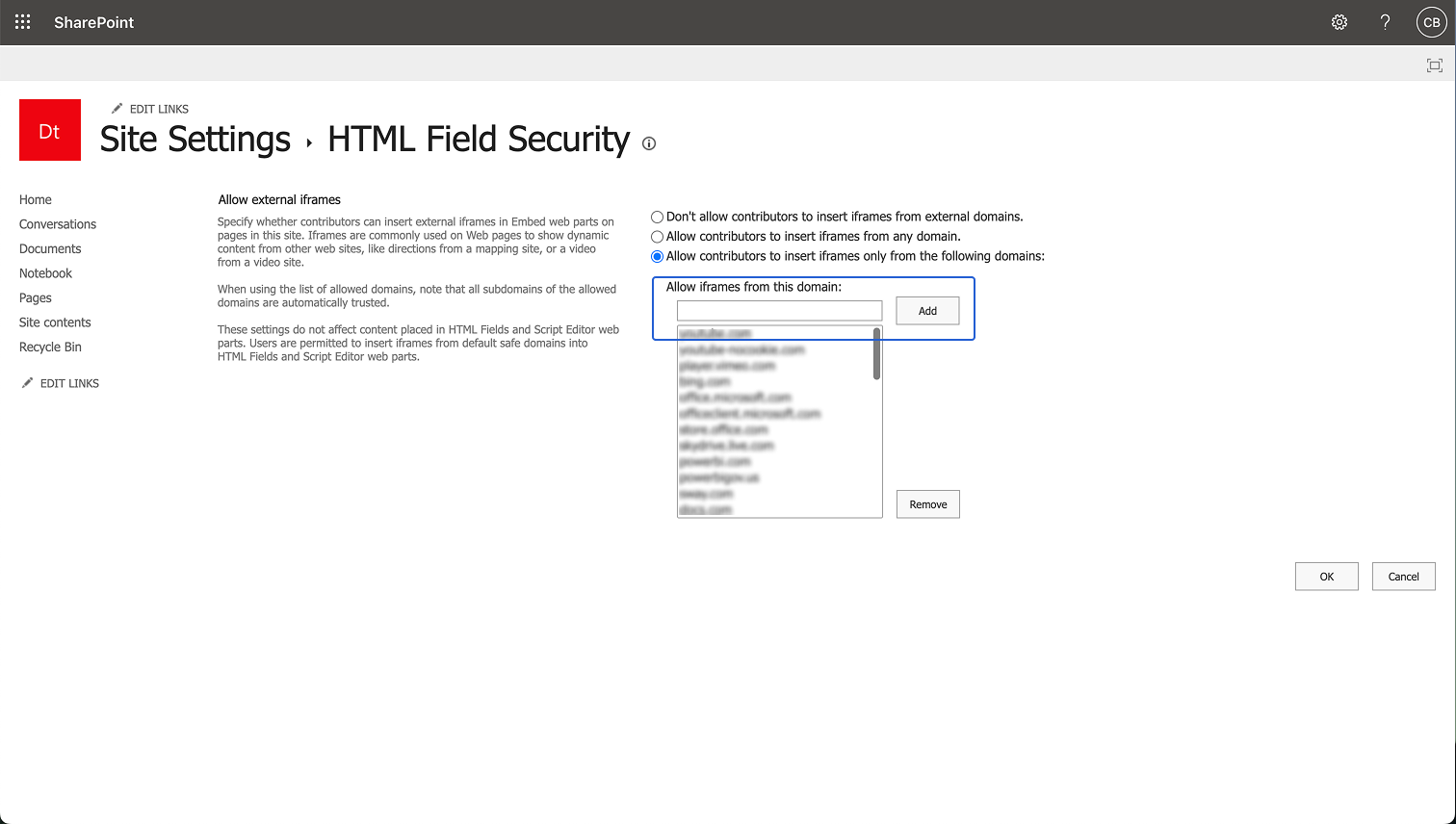
On the Site Settings page, select HTML Field Security.
Under Allow external iframes, select Allow contributors to insert iframes only from the following domains.
Add the StatusGator domain, click Add, click OK to save your changes.
Add the StatusGator embed
- Open the SharePoint page where you want to display StatusGator.
- Click Edit.
- Select the + button to add a web part.
- Choose the Embed web part.